


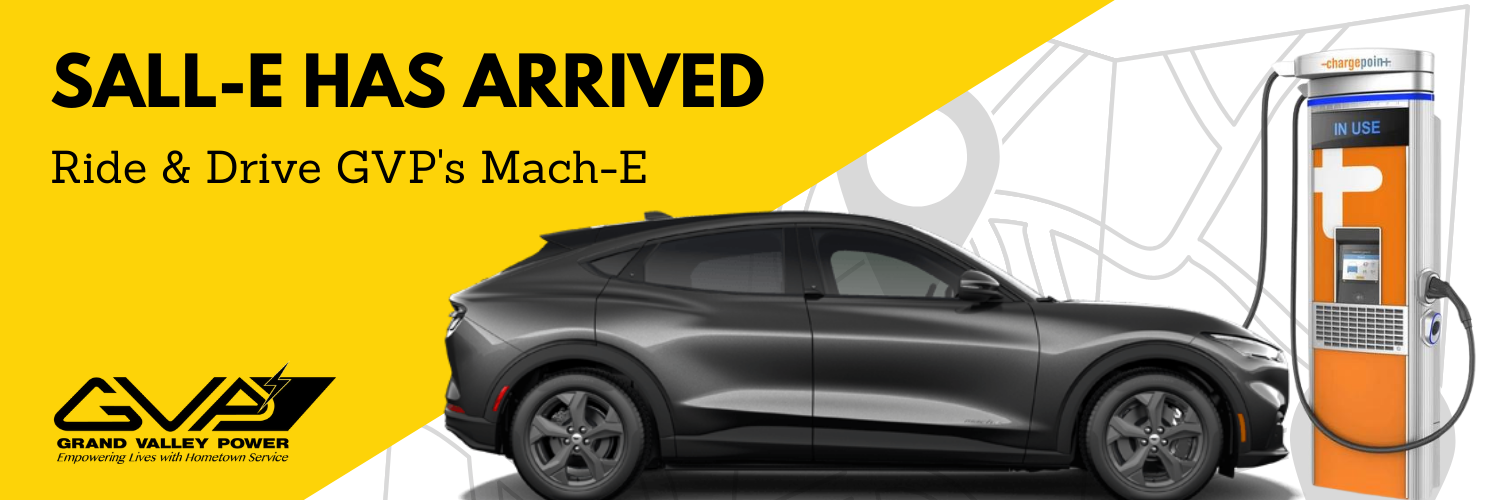
Are you ready for the ride & drive experience with Sall-E?

Step 1: Make Your Reservation

Step 2: Review Videos Online

Step 3: Take the Pre-Drive Survey

Step 4: Drive Sall-E!

Step 5: Take the Post-Drive Survey
How To Charge at ChargePoint EV Stations
Learn how to charge your electric vehicle (EV) with ChargePoint® electric vehicle charging stations, and find available charging stations on our network with our mobile app.
FAQ EV Section
Our Mach-E quickly inspired many names. After some brainstorming, Karen came by the Member Services areas one day and suggested Sall-E, after the song "Ride Sally Ride". We loved it so much, that we adopted the name immediately.
Please note: GVP Operations and Board of Directors will need to contact Cindy Roling or Member Services (Derek, Dana or Christmas) for help in reserving the EV, as there are limitations to the shared calendar across iPad devices.
First, navigate to your Outlook calendar, where you normally reserve time for appointments, meetings or the like.
You should notice different categories of calendars that you have available. This could include categories called "Groups", "People", or "Shared". Click the box, or expand the calendars section, so that you make them visible. Navigate down the list to find a calendar named "Drive Electric Grand Valley Power".


Once you find the calendar, select it (as you would when making an appointment). It should highlight. You are now using the shared calendar.

Next, you can make a reservation one of two ways: You can do this by (1) double-clicking in the calendar itself, (2) click on "appointment" in the upper left corner of the menu. Make sure the appointment header says "Drive Electric GVP" and put your last name in the subject line. Hit "save and close".

The final step is confirming your appointment saved. You should now see your appointment in the calendar. You can toggle your shared calendar look anytime! To go back to your personal or main calendar, simply select it on the left-hand menu.

Contact Christmas with any issues or questions regarding the EV calendar.
The pre-drive survey can be found here: Pre Survey
The post-drive survey will be sent via email, and also can be found here: Post Survey
No, however, other charging stations that are not on the ChargePoint network, will require a credit card or an online account to charge at the station. ChargePoint has one of the largest networks across the nation and in Colorado. In fact, there are now over 40 charging stations in Mesa County, with the majority being ChargePoint stations (with exception of the Tesla stations in front of the mall and Electrify America at Sams Club. Maps of the charging network are built into the Mach-E through the navigation center, through the Chargepoint App (my favorite) and online.
Online map: https://na.chargepoint.com/charge_point
If you do charge outside of the network, keep your receipts to be reimbursed.
Keep in mind, that some public charging systems are not compatible with certain types of electric vehicles - but don't worry, because the only make of vehicle that is not compatible is Tesla. All Tesla's are sold with an adaptor. Think of it as your other electronics. For instance, an Apple charger normally does not work with an Android phone. All charging networks tell you what connector types are available. The Mach-E utilizes a plug called J1772 and includes a DC connector (CCS1). That’s important to know because every non-Tesla level 1 or level 2 charging station sold in North America utilizes the J1772 connector. The Mach-E is compatible will all non-Tesla stations.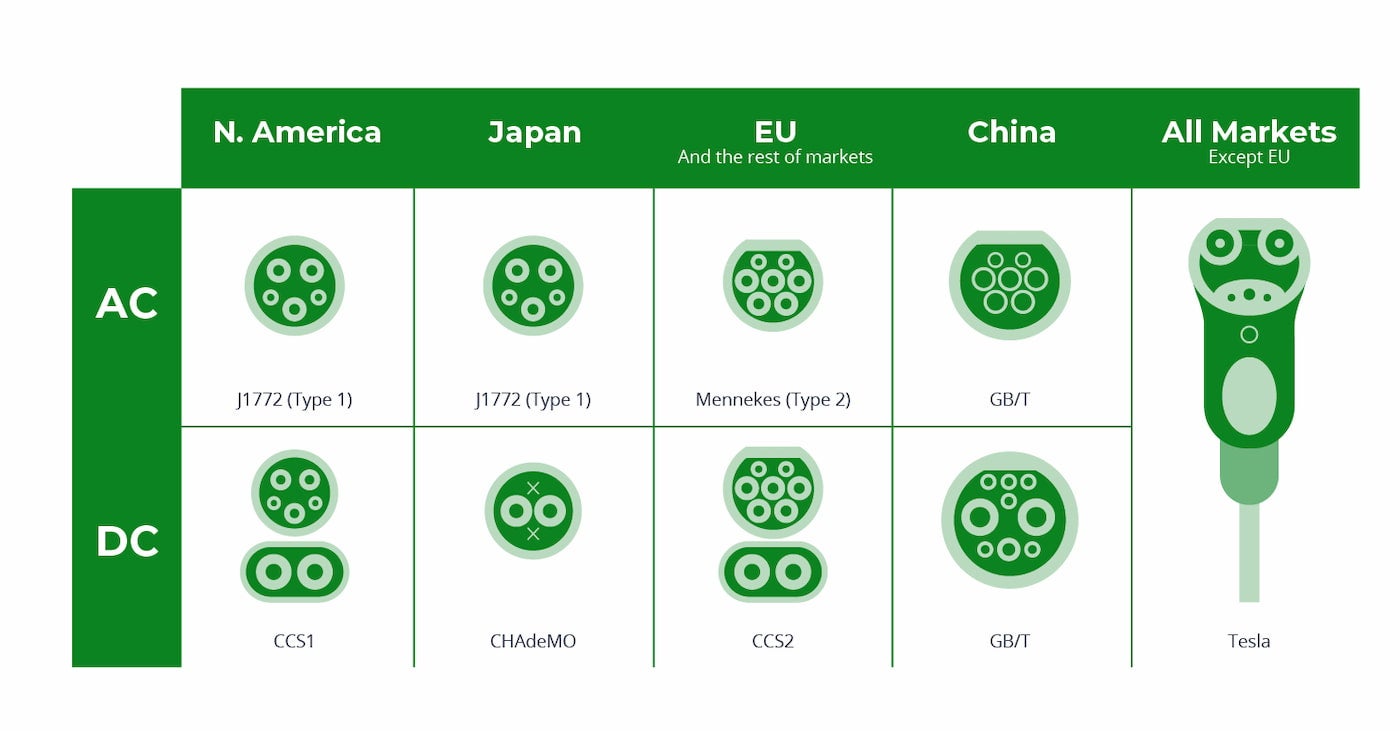
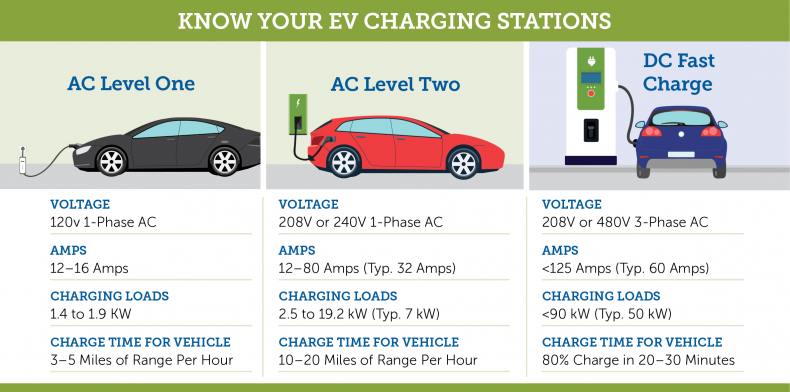
Level 1 is the slowest but most readily available, because it describes a standard 120-volt three-prong plug common in moderns American homes. Yes, that's right. You can charge an EV using the same plug with which you charge your phone or laptop. In fact, most EVs come with a standard 120-volt outlet charger. But slow charging, sometimes called “trickle charging,” using a Level 1 outlet provides only a few miles per hour of charging. It takes 10 hours of charging to get 20-50 miles of range or 40 hours of charging for up to 200 miles.
Level 2 charging is exponentially faster than Level 1 charging, providing upwards of 20 miles of driving range per hour. That means an 8-hour charge reaps 200 miles or more of driving range.
The third type of charging is high-speed or Level 3 charging, which is available in public and commercial spaces including rest stops, shopping malls, and office buildings. Level 3 charging is also called DC Fast Charging (DCFC). This is ultra-rapid charging, with rates of 125 miles of added range in about thirty minutes, or 250 miles in about an hour.
We ask that you do the following after you return the vehicle:
- Plug the vehicle back into the charger.
- Throw out all trash and remove all personal items.
- Put the windshield visor up to protect the interior.
- Submit receipts to Member Services for reimbursement (if you charged the vehicle using a personal card).
Return the key and take the post-survey!
If you’re in an accident in a company car (Mach-E or other), you should seek emergency medical attention as needed and remember it is never okay to leave the scene of an accident.
First, report the accident to law enforcement. Additionally, it’s important to immediately report the accident to your employer. Employees are covered under our co-op insurer in most cases. If you’re able, you should take photos at the accident scene and gather names and contact information (just as you would for your own personal vehicle).
Grand Valley Power has a written policy called the "GVP employee driver policy."
We simply ask the following:
- Please be responsible while driving, and avoid texting or other distracted driving.
- Please do not smoke or drink in the vehicle or while operating it.
- Ultimately, we expect all drivers to be responsible and abide by traffic laws.
The key and ChargePoint card is located in the Member Services area.
The Mach-E has keyless entry, so when you approach the vehicle, it will unlock when you are close to the vicinity, and lock when you walk away. Of course, you can always hit the buttons on the fob as well.
The ChargePoint card is also on the same key ring. All charge units have Tap and Pay feature, where you wave the card in front of the symbol below to unlock the unit to charge. Watch our feature video on how to charge!